
How to Use DSC Token on Mac for GST and Income Tax (emSigner Fix for M1, M2, M3)
To use a DSC token on a Mac for GST, you need the GST emSigner (GSTSigner) running on your Mac before you sign. If it is not running, the GST portal shows “Failed to establish connection to the server. Kindly restart the Emsigner”. On a MacBook with an M1, M2 or M3 chip the fix is to open the GSTSigner2.8_Mac.dmg file, start emsigner_WS_OMM.jar from Terminal with Java 11, open https://127.0.0.1:1585 in Chrome and click Proceed, and keep that Terminal window open while you sign. For income tax, the e-filing portal uses a different utility, eMudhra emBridge, which has its own Mac installer.
This guide has the exact commands and screenshots from a setup we use at TAXAJ to sign GST filings from a MacBook Air with an M1 chip. It takes about 10 minutes.
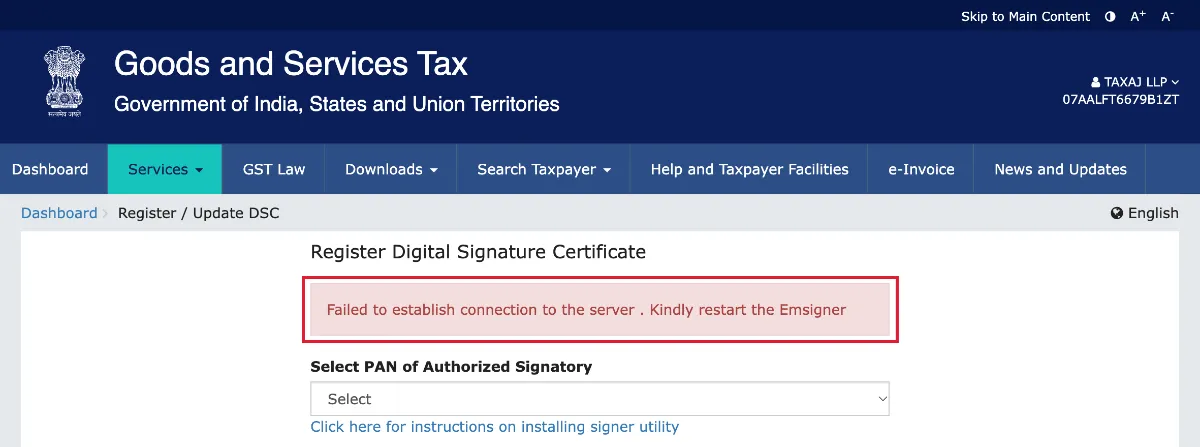
Why the GST portal says “Kindly restart the Emsigner” on a Mac
The GST portal never talks to your USB token directly. It sends the signing request to a small program on your own computer, the GST emSigner, which listens on port 1585. The emSigner then reads the certificate from your token and asks for the token PIN. On Windows the emSigner installs as a service and starts by itself. On a Mac it usually does not, so the portal finds nothing listening and shows the error. Common reasons:
- the Mac version of the emSigner was never downloaded, or the disk image is not open;
- Java is missing, or an old Java is being used;
- the emSigner was started but the Terminal window running it was closed;
- an old Java or emSigner process is still holding port 1585.
If you use Windows, see our emSigner connection error guide for Windows instead.
What you need before you start
- A Mac running macOS (these steps were tested on Apple Silicon, M1);
- your DSC USB token and its PIN;
- the macOS driver for your token, from your DSC provider (see our DSC USB token guide);
- your Mac login password, which Terminal asks for once;
- Google Chrome.
Step 1: Download the GST emSigner for Mac (GSTSigner2.8_Mac.dmg)
- Open the official GST page: gst.gov.in/help/docsigner.
- In the Macintosh row, download Document Signer Installer v2.8, file name
GSTSigner2.8_Mac.dmg(direct link). - The file is saved in your Downloads folder.
Which version applies to you? At the time of writing, the GST page lists v2.8 for tokens obtained before 21 September 2026 and v3.3 for tokens obtained on or after that date. The Mac download for v3.3 is shown as “will be available soon”, so check the page for the latest position.
Optional safety check: the GST page lists the MD5 checksum bd15d2a059978c6b6640b911f593a8f9 for the Mac file. Run md5 ~/Downloads/GSTSigner2.8_Mac.dmg in Terminal and compare.
Step 2: Install Java 11 on your Mac (M1, M2, M3 or Intel)
The emSigner is a Java program. We use Java 11 (OpenJDK 11, Azul Zulu build 11.0.29). The GST system requirements page only lists Java 1.6 to 1.8 for the Windows utility and says nothing for Mac, so Java 11 is what works for us, not an official GST requirement.
Check whether Java is already installed
Open Terminal (press Cmd + Space, type Terminal, press Enter) and run:
java -versionIf the version starts with 11, for example openjdk version "11.0.29", go to Step 3.
If Java is missing or a different version
- Open the Azul Zulu download page.
- Choose Java 11 (LTS), macOS, ARM 64-bit for M1, M2 or M3 Macs (or x86 64-bit for older Intel Macs), and JDK.
- Download the .dmg or .pkg installer and run it.
- Close Terminal, open it again and run
java -version. It should now show version 11.
Not sure which chip your Mac has? Click the Apple menu, then About This Mac. If it says Apple M1, M2 or M3, choose ARM 64-bit.
Step 3: Open the GSTSigner disk image
- Open Finder and go to Downloads.
- Double-click
GSTSigner2.8_Mac.dmg. - Check that GSTSigner now appears in the Finder sidebar under Locations.
Do not skip this. The commands in Step 4 run the emSigner from this mounted disk. If the disk image is not open, Terminal shows cd: no such file or directory: /Volumes/GSTSigner/GSTSigner and Error: Unable to access jarfile emsigner_WS_OMM.jar:
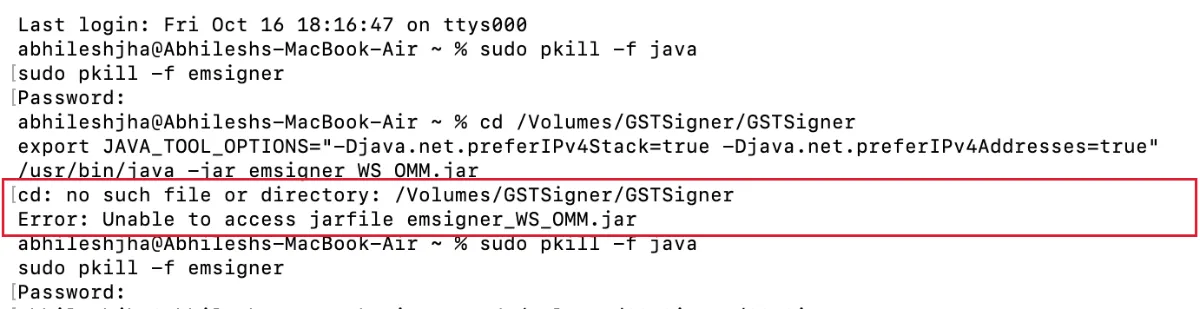
Step 4: Start the GST emSigner from Terminal (port 1585)
Terminal window 1: start the emSigner
First clear any old Java or emSigner process. Terminal asks for your Mac password once; nothing appears while you type it, which is normal. Note that this closes any other Java program you have open.
sudo pkill -f java
sudo pkill -f emsigner
Nothing is printed and the prompt comes back. In the same window, run:
cd /Volumes/GSTSigner/GSTSigner
export JAVA_TOOL_OPTIONS="-Djava.net.preferIPv4Stack=true -Djava.net.preferIPv4Addresses=true"
/usr/bin/java -jar emsigner_WS_OMM.jar
Terminal prints Picked up JAVA_TOOL_OPTIONS and then Server started on port: 1585. The prompt does not come back, because the emSigner is now running. Keep this window open while you work on the GST portal.

You may also see Error in writing log - Read-only file system, because the emSigner is running from the disk image and cannot write its log there. It did not stop signing for us. If you see SSLHandshakeException: Received fatal alert: certificate_unknown, the browser has not yet accepted the emSigner local certificate; Step 5 below deals with that.
Terminal window 2: confirm it is running
Open a second Terminal window (Cmd + N, or Shell > New Window) and run:
lsof -i :1585You should see a java line ending in TCP *:intv (LISTEN). macOS shows port 1585 by its service name, intv, so this is correct: the emSigner is listening.

Step 5: Open https://127.0.0.1:1585 in Chrome and click Proceed
This is the last step before you open the GST portal, and the one most people miss. With Terminal window 1 still running, open a new Chrome tab and go to:
https://127.0.0.1:1585Chrome shows Your connection is not private with the code NET::ERR_CERT_AUTHORITY_INVALID. This is expected: 127.0.0.1 is your own Mac, and the emSigner uses a self-issued certificate that Chrome does not recognise. Click Advanced, then click Proceed to 127.0.0.1 (unsafe) at the bottom of the page.
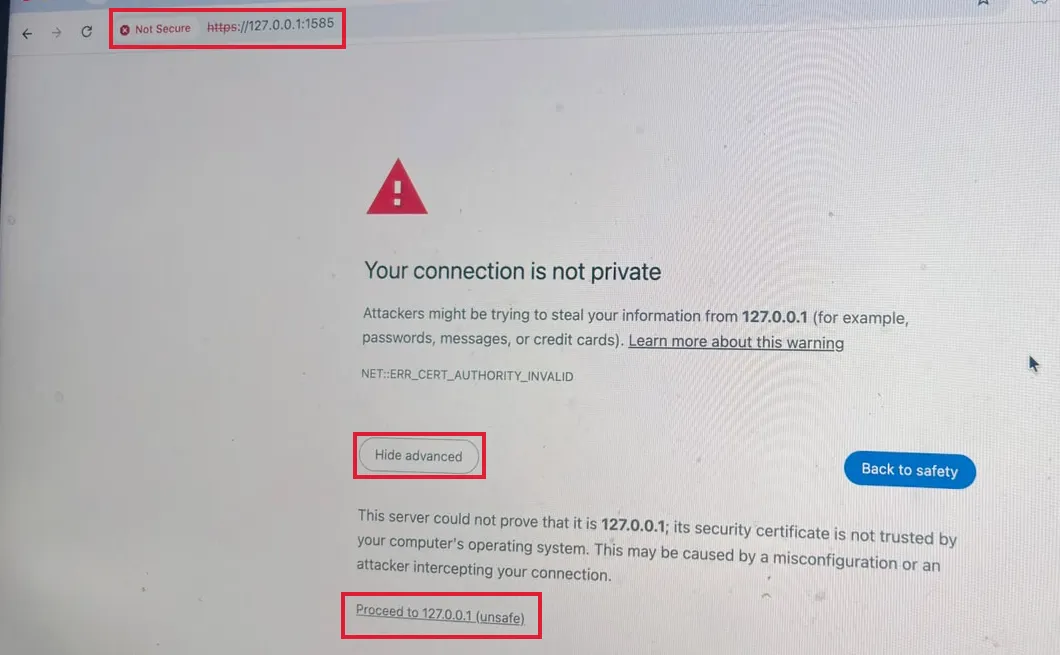
Chrome now accepts the emSigner certificate for this session, and the GST portal can talk to it. Only do this for 127.0.0.1, which is your own computer; never click Proceed on this warning for any other website. Now open the GST portal in another tab.
Step 6: Register or sign with your DSC on the GST portal
- Insert your DSC USB token.
- Log in to the GST portal and open Services > User Services > Register / Update DSC.
- Select the PAN of the authorised signatory. The “Failed to establish connection” error no longer appears.
- Click Update (or the signing button you need). A small window titled Enter password if token is inserted opens.
- Enter your DSC token PIN and click OK.
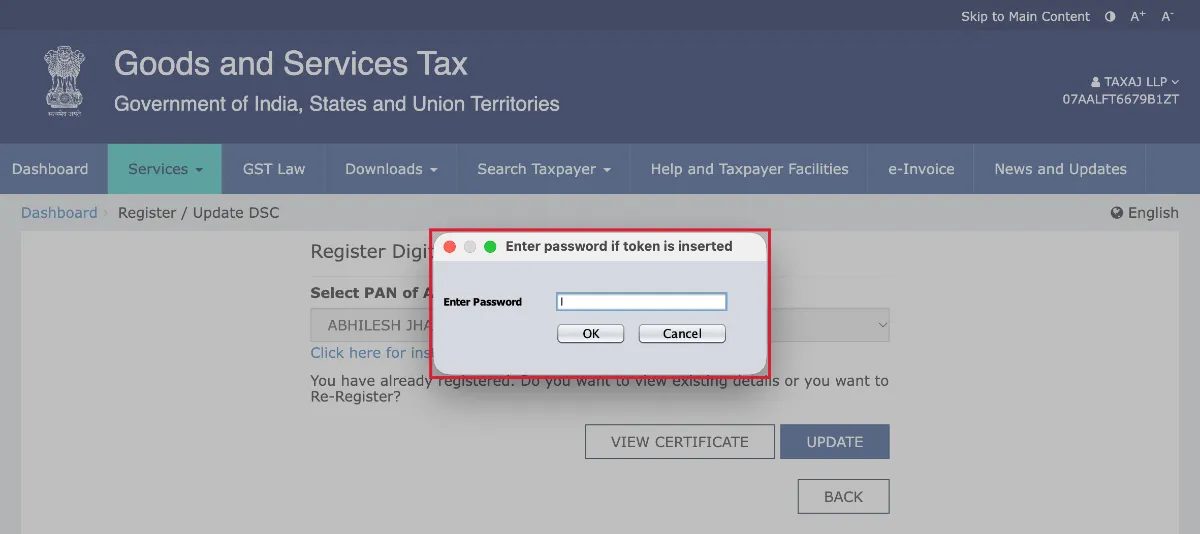
The signing then completes. The same steps work when you file a GST return, an amendment or an application with DSC. If you have renewed your DSC, register the new certificate on every portal; see our DSC re-registration checklist.
How to use a DSC token on Mac for income tax filing (emBridge)
The income tax e-filing portal does not use the GST emSigner. It uses emBridge from eMudhra, and the portal lists it under Downloads > DSC Management Utility, where the Mac entry is a zip with the emBridge Mac installation and troubleshooting guides. The emBridge installer itself is on embridge.emudhra.com, which lists a Mac x64 installer for macOS 10.12 and above.
- Download the Mac installer from the emBridge site and open the .pkg file.
- Click Continue, then Install, and enter your Mac password when asked. Because the installer is built for Intel (x64), an M1, M2 or M3 Mac may ask you to install Rosetta first; allow it.
- Install your token driver from your DSC provider if you have not already.
- Make sure emBridge is running, then insert your token.
- Log in to incometax.gov.in and register the DSC from your profile (Register DSC). Our income tax DSC registration guide has every screen.
- To sign a return, choose the DSC option on the e-Verify screen; see how to e-verify an income tax return.
We tested the GST steps above on an M1 Mac. The income tax steps follow eMudhra’s official Mac guide; if emBridge is not detected, the eMudhra troubleshooting guide asks you to check that emBridge is running, that the token is connected, that the right token driver is installed and, if you use a proxy, to bypass it for the local address. MCA filings use yet another utility; see our MCA emSigner guide.
Common emSigner errors on Mac and how to fix them
| What you see | What it means | Fix |
|---|---|---|
| Failed to establish connection to the server. Kindly restart the Emsigner | Nothing is listening on port 1585 | Do Steps 3 to 5, keep Terminal window 1 open, reload the GST page |
| cd: no such file or directory: /Volumes/GSTSigner/GSTSigner | The GSTSigner disk image is not open | Double-click GSTSigner2.8_Mac.dmg, then run the commands again |
| Error: Unable to access jarfile emsigner_WS_OMM.jar | Terminal is not inside the GSTSigner folder | Run the cd line first, then the java line |
| zsh: command not found: java, or a version other than 11 | Java 11 is not installed | Install Azul Zulu JDK 11 (Step 2) |
| Address already in use on port 1585 | An old emSigner or Java process is still running | Run the two sudo pkill lines, then start again |
| SSLHandshakeException: certificate_unknown | Chrome has not accepted the local certificate | Open https://127.0.0.1:1585, click Advanced, then Proceed |
| The PIN window does not appear | The token or its driver is not detected | Reinsert the token and check that the token driver is installed |
Things to remember
- Start the emSigner each time before you sign. After a restart, repeat Steps 3, 4 and 5.
- Closing Terminal window 1 stops the emSigner, and the error comes back.
- If the error returns, start again from the two sudo pkill lines.
- Never share your token PIN; the portal only asks for it in the emSigner window.
Frequently asked questions
Does the GST emSigner work on a Mac with an M1, M2 or M3 chip?
Yes. We use GSTSigner v2.8 for Mac on an M1 MacBook Air with Java 11 (ARM 64-bit), started from Terminal as shown above.
Which port does the GST emSigner use on Mac?
Port 1585. Run lsof -i :1585 in Terminal; a java line with LISTEN means it is running.
Do I need to start the emSigner every time?
Yes, on a Mac you start it from Terminal before each signing session and keep that window open until you finish.
Can I use the same DSC token on a Mac for GST and income tax?
Yes. The token is the same, but GST uses the GST emSigner and the income tax portal uses eMudhra emBridge, so you need both utilities on your Mac.
Why does the GST portal still say “Kindly restart the Emsigner”?
Usually because the Terminal window running the emSigner was closed, the disk image was ejected, or the browser has not accepted the local certificate. Repeat Steps 3 to 5, including clicking Proceed on https://127.0.0.1:1585 in Chrome.
Need help with GST, income tax or your DSC?
TAXAJ LLP is a CA-led firm with offices in Delhi, Bengaluru, Goa and Bihar. We issue and register Class 3 digital signature certificates, file GST returns and income tax returns, and can get your Mac set up for signing.
Last updated 19 October 2026. Tested on a MacBook Air (M1) with GSTSigner v2.8 and Azul Zulu OpenJDK 11.0.29. Sources: GST portal Document Signer download page; income tax e-filing portal DSC Management Utility downloads; eMudhra emBridge Mac installation and troubleshooting guides. Portal menus and utility versions change; check the official pages before you install.
