
emSigner Installation for MCA: Step-by-Step Guide and Troubleshooting
The Ministry of Corporate Affairs requires stakeholders to install emSigner before a Digital Signature Certificate can be registered or associated on the MCA portal. It is a small utility that runs a local service on your own machine and acts as the bridge between the browser and the DSC token plugged into it.
The installation itself is straightforward. What trips people up is everything after it — the service not starting, the browser refusing to talk to it, or the token not being detected. This guide covers the installation step by step with screenshots, and then the failures that actually happen.
Which emSigner do you actually need?
“emSigner” is used loosely for more than one thing, and installing the wrong one is a common reason a signature fails after a clean install. Before you go further, check which portal you are signing on.
| You are signing on | What you need |
|---|---|
| MCA V3 portal — e-forms, DIR-3 KYC, ROC filings | The emSigner utility covered by this guide. Keep reading. |
| Income tax e-filing portal | A different DSC utility, with its own registration step. See registering a DSC on the income tax portal. |
| TRACES / TDS returns | See signing a TDS return with a digital signature. |
The certificate itself is usually the same Class 3 DSC across all of them. What differs is the signing utility and the registration of that certificate on each portal — a DSC registered on MCA is not automatically registered on the income tax portal.
Before you start
- You need a Class 3 Digital Signature Certificate on a USB token, with the token drivers already installed. If you do not have one, see our digital signature certificate service.
- You need administrator rights on the machine. emSigner installs and runs a Windows service, and it will not work from a restricted user account.
- Close the browser before you begin. It has to be restarted afterwards in any case.
Step 1: Download emSigner
Download the utility from the MCA portal, which is the authoritative source and always carries the current version. A copy is also mirrored here for convenience: emSigner for Windows. If the two ever differ, use MCA’s.
Step 2: Open the download window
A new window opens. In the upper right corner you will find the option to download the setup file.
Step 3: Run the installer
Once the download completes, double-click the emSigner.msi file in the folder it was saved to.
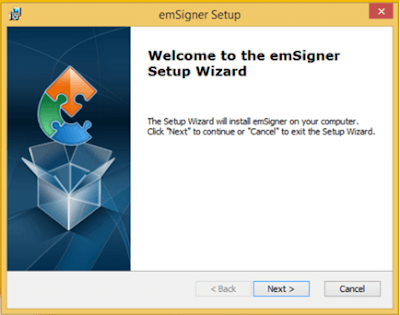
Step 4: Setup wizard
The setup wizard is displayed. Click Next.
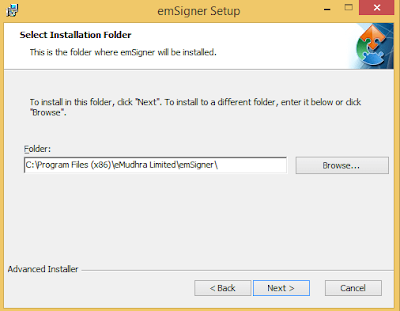
Step 5: Choose the destination folder
Select the destination folder and click Next. The default location is fine unless you have a reason to change it.
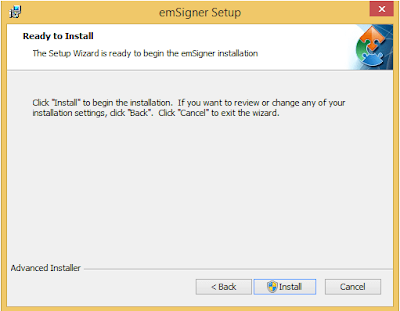
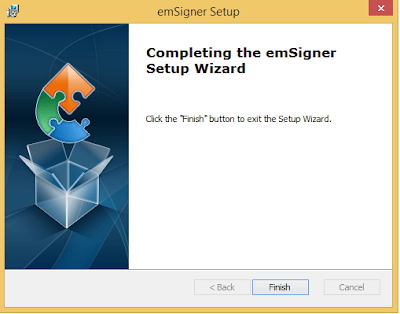
Step 6: Install
Click Install to begin, then Finish to exit the wizard when it completes.
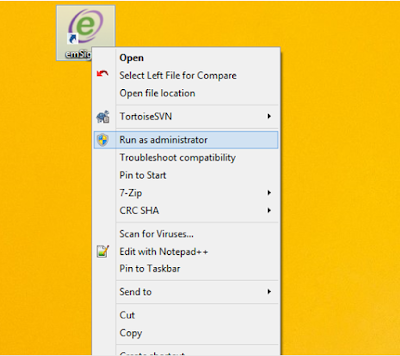
Step 7: Run as administrator
This is the step most often skipped, and skipping it is why the service does not start. Right-click the emSigner icon on your desktop and choose Run as administrator — not a normal double-click.
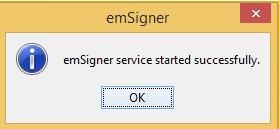
Step 8: Confirm the service has started
A message confirms that the emSigner service has started. Click OK.
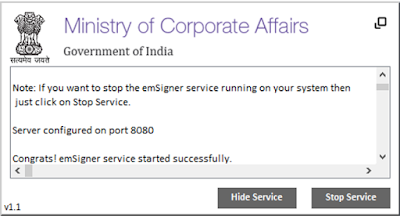
Step 9: The signer window
On a successful setup, the Digital Signature Signer window is displayed. emSigner is now listening locally on https://127.0.0.1:2015. Leave it running while you work on the MCA portal.
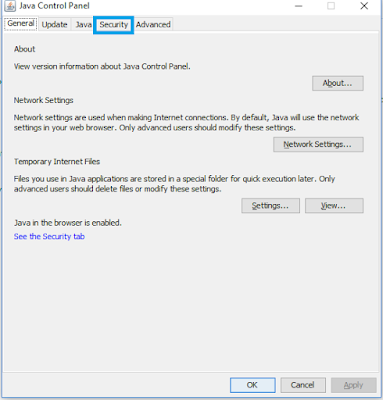
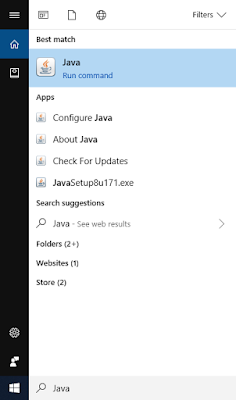
Step 10: Allow the local address in Java, if applicable
Where your setup still relies on the Java plug-in, open the Java Control Panel — search for Java in the Start menu, or find it in Control Panel — go to the Security tab, click Edit Site List, add https://127.0.0.1:2015, then click Add and OK.
If your machine has no Java installed and the portal works without it, skip this step. Do not install Java solely to complete it.
Step 11: Allow JavaScript for the local address in your browser
In Chrome, open Settings, then Privacy and security, then Site settings, then JavaScript. Under Allowed to use JavaScript, click Add and enter https://127.0.0.1:2015.
Chrome’s settings layout has changed over the years — older guides describe an “Advanced” section and “Content settings”, which no longer exist under those names. The destination is the same: the per-site JavaScript permission list.
Close the browser completely and reopen it. The permission does not take effect in an already-open session.
Step 12: Register the DSC on MCA
With emSigner running and the token plugged in, you can now associate or register the certificate on the MCA portal. See our separate guide on registering a DSC on the MCA portal for that process. If you need the company’s CIN before you file, you can look it up by name with our free company master data search.
Find your error message
If you have pasted an error into a search box and landed here, find the exact wording below. The message is quoted as the portal shows it.
| Message on screen | What it usually means, and what to do |
|---|---|
| “Failed to establish connection to the server. Kindly restart the emSigner” | The portal cannot reach the emSigner service on your own machine. In order: confirm the service is actually running, relaunch it with Run as administrator, then open https://127.0.0.1:2015 in the same browser and accept the certificate warning for that local address. If nothing loads at all, the service is not running. See the troubleshooting section below. |
| “Something went wrong. Error: method c_sign returned 27014” | This one surfaces from the token and driver layer during the signing call, not from the MCA portal itself, so the portal message tells you very little. Work through it in this order: confirm the token is detected and the certificate appears in the Windows certificate store; reinstall or update the token driver from the token vendor; relaunch emSigner as administrator; and check that the certificate you are selecting is a valid, unexpired signing certificate belonging to the person who should be signing. We are not going to pretend the number itself is documented — that sequence is what clears it in practice. |
| “Digital signature verification failed. Please affix a valid DSC” | The signature was applied, but the portal does not accept it. Usually the certificate used is not the one registered against that DIN or PAN on MCA, or it has expired, or a different person signed than the form expects. Check the registration first — see registering a DSC on MCA. |
| “The required DSC have not been affixed” | The portal has not detected a signature on the form at all. This usually happens when the PDF was signed in a separate viewer rather than through the portal’s own signing step, when the signature field was left blank, or when the signed copy was not the copy uploaded. Re-run the signing step on the portal and upload the file it produces. |
| “DSC not registered with MCA” | Exactly what it says: the certificate has not been associated with your role on the portal, or it was registered with a different certificate that has since been renewed. A renewed DSC needs registering again. See registering a DSC on MCA. |
| “DSC not working in EPFO unified portal” / “EPFO DSC signer utility not working” | EPFO does not use the MCA emSigner. It has its own signer utility and its own registration of the employer’s DSC. Installing emSigner will not fix an EPFO signature. See EPF employer DSC registration. |
None of these are certificate problems in themselves. An expired or revoked certificate is a different matter, and the note on renewal further down covers it.
Troubleshooting: what actually goes wrong
The emSigner service will not start
Almost always because it was launched by double-clicking rather than Run as administrator. Close it entirely and relaunch as administrator. If it still fails, check whether another application is already using port 2015.
The browser cannot connect to emSigner
Open https://127.0.0.1:2015 directly in the browser. If nothing loads, the service is not running — go back a step. If a certificate warning appears, accept it for that local address; the certificate is self-signed by design because the service is on your own machine.
Antivirus or firewall blocking it
Security software sometimes treats a local HTTPS listener as suspicious. Add an exception for emSigner rather than disabling protection.
The DSC token is not detected
This is a token problem, not an emSigner problem. Confirm the token drivers are installed, that the token appears in the certificate store, and that the certificate has not expired. An expired certificate frequently presents as “token not detected” rather than as an expiry message.
It worked last month and does not now
Three usual causes, in order of likelihood: the certificate expired; a Windows or browser update reset the site permission; or emSigner is simply not running because the machine was restarted. Check all three before reinstalling anything.
Nothing happens when you click to sign
The signer window has to be open. Minimised is fine, closed is not.
A note on certificate renewal
A Class 3 DSC is issued for a fixed term. When it is renewed you receive a new certificate, and it has to be registered afresh on every portal where you use it — MCA, the income tax portal, GST, ICEGATE. Nothing carries over automatically, and this is discovered on a filing deadline more often than at any other time.
See our guides to registering a DSC on the income tax portal and signing TDS returns.
We can take this off your hands
We issue and renew Class 3 certificates, register them on every portal you need them on, and keep them current so a filing is never held up by an expired token. See our digital signature certificate service.
If the underlying task is an MCA filing, that is our business compliance service — see the list of ROC forms. Book a call, message us on WhatsApp, or sign in at the TAXAJ client portal.
emSigner and the MCA portal are updated from time to time and screen layouts change. Where this guide and the MCA portal differ, follow the portal.
